As the year winds down, we naturally start thinking about resolutions. We plan to eat healthier, exercise more, and organize our homes. But in the midst of the holiday rush and goal-setting, there is one critical area that often gets overlooked: our digital hygiene.
The end of the year is the perfect time for a “digital deep clean.” With cyber threats becoming more sophisticated every day, a year-end password audit isn’t just a tech tip, it’s a necessity.
Here is why you need to reset your security habits this December, and how to create a password strategy that is actually manageable.
The Threat Landscape: Why You Can’t Ignore This
Cybercriminals do not take holidays. In fact, data breaches and phishing attempts often spike during the busy year-end shopping season.
The biggest threat right now isn’t just someone guessing your password; it is Credential Stuffing. This happens when hackers take a username and password stolen from one website (e.g., a hotel chain or a forum) and use automated bots to try those same credentials on hundreds of other sites, like Amazon, PayPal, or Netflix.
The hard truth is if you are using the same password for multiple accounts, a single breach could compromise your entire digital identity.
Why “Set It and Forget It” is Dangerous?
You might think, “Nobody wants to hack me. I’m just a regular person.”
But hackers don’t target you; they target everyone, and you are a part of everyone group. They use automated bots to test billions of stolen email/password combinations across the web. If your password was leaked in a data breach back in March, and you haven’t changed it by December, hackers have had nine months to access your accounts.
The consequences of a single weak password can be catastrophic.
Common Password Mistakes to Avoid
The top 10 most common passwords in 2025 can all be cracked in less than one second. Few examples are, a series of numbers like 12345678, qwerty123, password1, dragon, monkey, etc. Using any of these or similar passwords is like leaving your door unlocked.
Even with all the scary news, many of us fall into the same password pitfalls. Let’s face it, humans like convenience, and remembering dozens of complex logins isn’t fun. But some shortcuts are downright dangerous. Here are the most common password mistakes (and yes, you might recognize one of your own habits here).
Using Weak, Easy-to-Guess Passwords
Every year, security analysts reveal the “worst passwords” people use, and it’s like a broken record. Variations of “123456,” “password,” “123456789,” and “admin” top the charts globally. These passwords are incredibly easy for attackers to guess or crack with automated tools. Hackers also know common patterns and keyboard sequences (qwerty or asdf), default passwords like password or admin, and popular phrases. Using any of these is essentially offering no real protection at all.

Reusing Passwords Across Multiple Accounts
This is perhaps the #1 mistake in terms of impact. Reusing one password on many sites might feel easier to manage, but it puts you at extreme risk. If any one of those sites gets breached, attackers will try the stolen password on your other accounts. Unfortunately, a lot of people reuse passwords. This practice is “highly unsafe and can provide criminals with a skeleton key once they hack a single credential”.
For example, if you use the same password for your email and, say, a food delivery app, a breach of that app could give hackers access to your email and from there they can reset passwords on all your other accounts. It’s a domino effect. Using unique passwords for each account is crucial to limit the damage of one breach.
Relying on Personal Info or Simple Patterns
Many people create passwords based on personal details (birthdays, pet names, favorite sports teams) or easy-to-remember patterns (like Summer2025 or John123!). The problem is attackers can often guess these. Personal info might be scraped from your social media or public data, and hackers try common formats (such as <Name>123 or City@2023).
Similarly, adding a capital letter, number, and symbol in a predictable way (e.g. Password1! or Welcome@123) doesn’t fool the hackers. Those look complex but are actually in cracking wordlists because they’re so common. In short, avoid dictionary words, famous quotes, or anything someone might figure out.
Other Miscellaneous Goofs
Using the default password that came with a device or account. Writing passwords on sticky notes on your monitor or under your keyboard where others can find them. Sharing passwords with friends or coworkers via text or email (those messages can be intercepted or seen). And ignoring basic account security like security questions, e.g., if your password hint or recovery answers are easily guessable, that’s a problem too. And not enabling 2FA (two-factor authentication) is also a missed opportunity.
What Makes a Strong Password?
So, what does a “strong password” look like? Modern security standards emphasize a few key qualities:
Length Matters Most
The single most important factor is length. A longer password provides exponentially more possible combinations, making it extremely hard to crack by brute force. Current best practice is to use at least 12 characters and more is better. In fact, the National Institute of Standards and Technology (NIST) guidelines now recommend allowing passwords up to 64 characters and stress that length trumps complexity.
Think of it this way; a short word with lots of symbols (P@$$w0rd! for example) is far weaker than a long passphrase of random words (correcthorsebatterystaple, a famous example) even if the latter has only letters. One cybersecurity report put it succinctly: “a memorable phrase of unrelated words (‘DigitalDoughAccessYellowArrowFerrari’) is more difficult to hack than a shorter string of jumbled characters (‘GnJ8l2$R!’)”. The takeaway is, aim for 12+ characters, and don’t be shy about going 16, 20, or more if the site allows.
Unpredictability and Complexity
While length is king, adding variety (mix of uppercase, lowercase, numbers, symbols) can still help as long as the result isn’t a predictable pattern. A strong password should look like random gibberish to an outsider. For example, BlueElephantBanana!7 might be long and has a special character and number, but if “BlueElephantBanana” is a phrase you’ve posted on social media or something guessable, it’s not ideal.
Truly strong passwords avoid dictionary words or common phrases entirely, unless used as part of a longer passphrase that is unique to you. Random combinations like fj39$diQ?Lap*2 are very strong, but impossible to remember. A nice balance is something like a multi-word passphrase with some tweaks: e.g. orbit_hunter_trapdoor_51; three unrelated words and a number. It’s long (26+ characters including underscores), contains lowercase and a number, and isn’t an obvious sentence or quote. Attackers using brute force or dictionary attacks will struggle with that due to the combinatorial complexity.
Uniqueness (No Reuse)
Even the strongest password is weak if you use it everywhere. Strength includes being unique per account. If you have a 20-character masterpiece, use it only for one account. That way, even if that account gets breached, your other accounts remain safe. Also, uniqueness extends to not using slight variations. Don’t do the “base password + site name” trick (like ShoesStorePassword, BankPassword), because if one gets known, the pattern is obvious. Treat each password as a one-of-a-kind key.
Protected (Secret) and Updated When Needed
A strong password is one that others can’t easily find or steal from you. That means you keep it secret (no sharing or writing it on public notes), and you change it if you suspect it’s compromised. While routine frequent changes aren’t mandated by modern guidelines, you should absolutely update a password immediately if a site warns of a breach or if you realize it might have leaked.

An annual refresh of your most important passwords (email, financial accounts, etc.) is a good proactive measure. This helps ensure that even if an old credential leaked long ago, the version you use now is different (invalidating what the hackers have). For example, if you changed your Gmail password last December, any breach that revealed the prior password won’t help an attacker now. Don’t give thieves the advantage of time, passwords that stay static for years become more likely to eventually fall into the wrong hands through one leak or another.
Weak vs. Strong Passwords
To illustrate strong vs weak, consider these two examples:
Weak: Winter2025!, It’s 10 characters, includes upper/lower, number, symbol. But it’s actually quite guessable: it follows a common pattern of a season+year and a predictable “!” at the end. Hackers try patterns like this.
Strong: mudSling-kiwi-930, It’s eighteenth characters, combination of three random words (mud, sling, kiwi), with a hyphen separator and a number at the end. It’s not a known phrase, it’s long, and it has a mix of letters (some capitalized) and numbers/symbols. This would be extremely difficult to crack with any known method, yet it’s something you could remember (maybe by visualizing someone slinging mud at a kiwi bird with the number 930 on it; weird, but that’s the point).
In 2026, strength = long + unique + unguessable. If your passwords meet those criteria, you’re in good shape. Next, we’ll tackle how to actually create such strong passwords without losing your mind because memorizing a 20-character random string for each account is not exactly feasible for most of us.
How to Create Strong Passwords You Can Remember?
We often hear advice like “use 14 random characters” – which is great for security, but how on earth do you remember something like “g7H$k9q#Lm3P3z”? The answer for many people is ‘can’t’. Instead, use strategies to create memorable. Here are some tips for crafting strong passwords that won’t slip your mind.
Use Passphrases
A passphrase is essentially a password made of multiple words, ideally unrelated or in an unusual combination. For example, “marble_soda_curtain_breeze” is a passphrase of four random words. It’s long (26 characters) and easy for you to remember if you visualize those objects together or make a little story. Yet it’s incredibly hard for a computer to brute force because of the length and random word combination.
In this, you can sprinkle in some capitalization, numbers or punctuation to meet character requirements (e.g., Marb1e_S@da_curtain_Breeze). The key is to avoid common phrases, movie quotes or song lyrics; those are in attackers’ dictionaries. Instead, pick words that have meaning to you but aren’t an obvious set. Four or five random words is plenty strong. There’s even an xkcd comic about this method (correct horse battery staple!) which demonstrates that a simple random phrase can be far stronger than a convoluted short password.
Mnemonic Devices
If you prefer not to use full words, you can use a mnemonic technique. Think of a sentence you can remember and use the first letter of each word, with some tweaks. For instance, take a sentence like, “My first car was a blue Honda Civic in 2005!” That could translate to a password: MfCwaBHCi2005! (notice we kept the first letters, and included the year and punctuation from the sentence).
This looks pretty random but is burned into your memory because you remember the sentence. Be cautious though, don’t use a famous quote or something other people know you associate with. And ensure the base sentence isn’t written down or posted anywhere. The more personal and obscure (in your own brain) the better.
Visualization and Association
Our brains are actually good at remembering images and stories. If you create a password like “Dandelion88Truck!!”, you can form a mental picture of 88 dandelions loaded in a big truck, and maybe the truck’s horn goes “!!”. It sounds silly, but the sillier and more vivid, the more memorable.

The idea is to associate your random password with a mental story or image. It’s much easier to recall that image than a raw string of characters. So even if your password is gibberish, try to break it into chunks and imagine something for each chunk. For example, “g7H$k9q#Lm3P3z” is hard, but you could chunk it as g7H$ + k9q# + Lm3P + 3z and make a weird story: maybe “g7H$” looks like a robot name, “k9q#” looks like a code for a canine (#K9), “Lm3P” reminds you of “Lemon 3 Pie”, and “3z” looks like a sleeping emoji  (just brainstorming). The point is to personalize the randomness with meaning only you know.
Don’t Overdo Obscurity
You might think replacing letters with lookalike symbols (like $ for S or @ for A) makes a password super secure. Attackers are wise to these tricks; their cracking tools test common substitutions. It’s fine to include such characters as part of a broader strategy, but doing “P@ssw0rd!” instead of “Password!” doesn’t really help anymore. So focus on overall unpredictability (length and randomness) rather than just leetspeak.
Also, you generally don’t need to include every character type if the password is long enough and not a simple word. Some systems still require a mix of upper/lower/number/symbol, but many just require a minimum length. Follow the rules given, but remember length + uniqueness is the priority.
Consider a Password Manager for the Truly Unmemorable
If you have a handful of passwords that you absolutely must memorize (say, your computer login, your email, banking, important applications), use the above techniques. For all the others, don’t torture yourself, use a password manager which can generate and remember crazy complex passwords so you don’t have to.
If you absolutely refuse password managers, a securely stored cheat sheet might be an alternative; for instance, writing down passwords in a notebook kept in a safe at home. It sounds counterintuitive to “write down” passwords, but some security experts say it’s better than reusing the same weak password everywhere. If you do write them, don’t label them obviously (no “Bank of America password = …” entries that anyone could identify). And never store passwords in plain text on your computer or phone notes, that’s just asking for trouble if your device gets lost or infected.
The goal is to reduce the cognitive load on you while still maintaining strong, unique passwords. Using passphrases and mnemonic techniques can make a world of difference. With a bit of creativity, you can create passwords that look like gibberish to others but are actually quite logical to you.
Tools to Manage Passwords (and Make Life Easier)
Keeping track of 5 or 10 long, unique passphrases is one thing. But what about 50 or 100 different accounts we accumulate over the years? This is where password managers come in. A password manager is like a secure vault for all your login credentials, you remember one master password (or passphrase), and the manager stores the rest, encrypted and organized. You can have it generate strong random passwords for each site, auto-fill them when needed, and sync them across your devices. If you’re not using one yet, consider it as a New Year’s gift to yourself; it can seriously up your security game without much hassle.
Top Recommended Tools:
- Bitwarden: Excellent free tier, open-source, and highly secure.
- 1Password: Great user interface and family sharing features.
- LastPass: A popular choice with easy cross-device syncing.
- NordPass: Great user interface and very easy for beginners.
- Built-in Options: Google Password Manager or Apple Keychain are great starting points if you aren’t ready for a dedicated app.
Beyond the Password: Additional Year-End Security Steps to Take
Updating your passwords is a fantastic start to your year-end security spruce-up. To really fortify your accounts, consider these additional steps during your annual review:
Enable Two-Factor Authentication (2FA) everywhere You Can
Passwords are your first line of defense, think of 2FA as a sentry guard standing behind that door. Two-factor authentication means that even if someone knows your password, they still can’t get in without a one-time code from your phone or a hardware key. Microsoft reported that 99% of automated attacks on their services were blocked by accounts that had 2FA enabled.
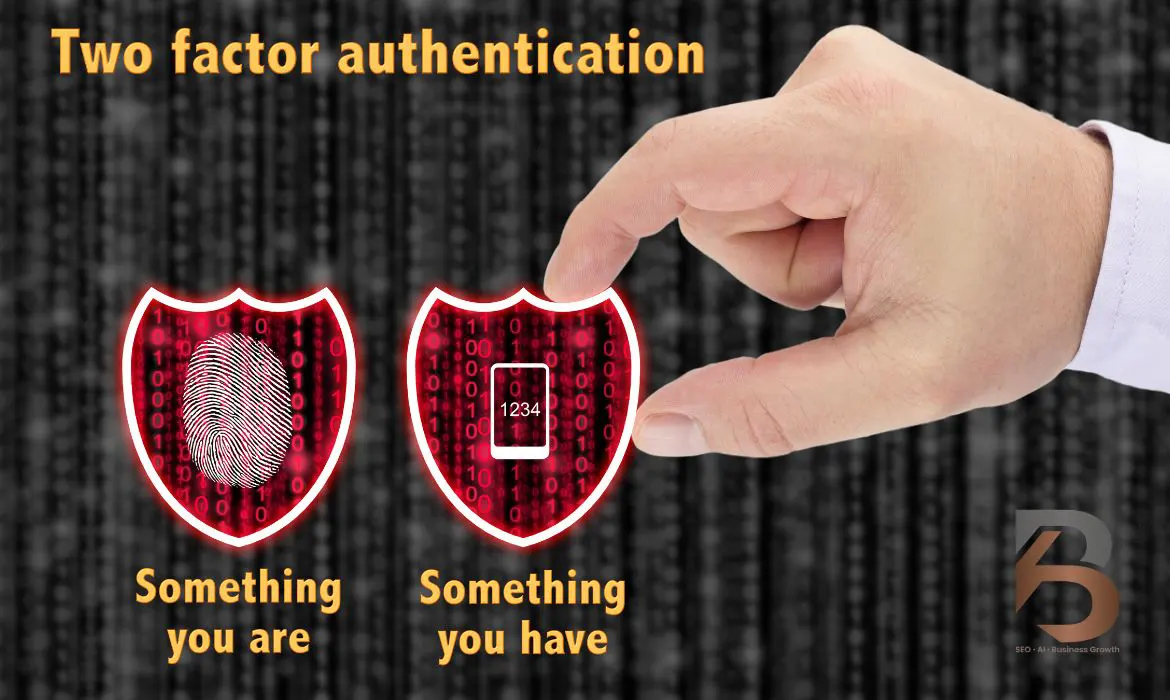
You can use app like Google Authenticator, Authy, or Microsoft Authenticator. Some services send SMS text codes (better than nothing, but less secure than app codes due to SIM swap risks). More robust options include physical security keys (YubiKey or similar) which you plug in or tap to authenticate. It’s an extra 30-second step when you log in from a new device, but it massively reduces the chance of a bad guy sneaking in.
Review and Remove Unused Accounts
Over the years you might have signed up for dozens of services or apps that you no longer use. Each of those accounts is a potential backdoor if it remains online with an old password. A good end-of-year practice is to make a list of accounts you truly need and use, and identify the ones you can close or purge.
Did you make an account on some forum or old shopping site that you haven’t visited in 5 years? Log in (use the “forgot password” if needed), then delete the account or at least clear any personal data and disconnect payment info. The fewer accounts you have lying around, the fewer opportunities for attackers.
Use a Breach-Checking Tool
Throughout the year and especially at year-end, it’s wise to check whether your credentials have been compromised in any known data breaches. One of the most trusted resources is Have I Been Pwned (HIBP). It’s a free website where you can securely search your email address to see if it appears in any publicly known breach dumps.
HIBP will list breaches that included your email (or even specific passwords if you use their password check tool) without exposing your actual passwords. If you see accounts that were breached and you haven’t changed those passwords since the breach date, it’s time to change now.
Update Your Devices and Security Software
This isn’t password-specific, but it’s related. Take the year-end opportunity to make sure your devices (computers, phones, tablets) are up to date with the latest security patches. A lot of malware (including those that can steal saved passwords or cookies) exploit unpatched software.
Update your operating systems, browsers, and antivirus/anti-malware tools. Also, consider enabling features like password monitoring in your antivirus suite if it has one (some security apps will alert if your info appears in a breach, similar to the aforementioned tools). While you’re at it, maybe update your recovery info on accounts, ensure your email and phone number on accounts are current so you can recover them if you get locked out.
Strengthen Security Questions and Backup Options
Many accounts have security questions (like “What’s your mother’s maiden name?”). Treat these like secondary passwords. Don’t give real, easy-to-find answers, otherwise these answers can be used to reset your password. You can use your password manager to store bogus answers to security questions (e.g., mother’s maiden name: “RedKite$42”, basically another password). That way if someone tries to social-engineer or guess your security answers, they’ll fail.
Also set up backup 2FA methods (like backup codes or an alternate authenticator device) where available, and keep those in a safe place. In short, beyond just changing passwords, use the year’s end to tighten the whole ship which dramatically reduce your chances of getting hacked.
Tips for Work and Business Account Security
Many of us have not only personal accounts, but also work or business accounts that need protection. Whether you’re an employee accessing corporate email or a small business owner managing financial and client data, securing work-related passwords is critical. Here are some tips to carry your good habits into the workplace.
- Follow (or Help Set) Your Company’s Password Policy
- Never Reuse Personal Passwords for Work Accounts
- Be Wary of Phishing and Social Engineering at Work
- Use Business-Grade 2FA and Security Tools
- Regularly Update and Audit Credentials
- Secure Your Wi-Fi and Physical Environment
Your Annual Password Update Checklist
By now, we’ve covered why and how to improve your passwords at year-end. It’s a lot of information, so let’s distill it into a practical year-end checklist. You can repeat this checklist every year (or even twice a year) to keep your password hygiene in top shape.
- Inventory Your Accounts
- Change Weak or Old Passwords
- Prioritize sensitive accounts
- Enable Two-Factor Authentication (2FA/MFA)
- Delete or Secure Unused Accounts
- Use a Password Manager to Streamline
- Run a Breach Check
- Review Security Questions and Recovery Info
- Clean Up Password Storage in Web Browser
- Set a Reminder for the Next Year
Conclusion: A Small Habit for Big Peace of Mind
In an age where so much of our lives is online, taking the time to secure your digital accounts is not just prudent, it’s essential. We’ve seen that password-related breaches are rampant and costly, but the power to prevent many of them is literally at your fingertips. A few hours spent updating your passwords, enabling two-factor authentication, and cleaning up your accounts at year’s end can save you from the nightmare of identity theft, financial loss, or even just the headache of recovering a hacked account.
You wouldn’t leave your front door unlocked for a year. Don’t do it with your digital life.
FAQ: Password Security Basics
How often should I change my passwords?
The latest expert guidance is that you do not need to change passwords extremely frequently (like every 30 or 90 days) unless you suspect a compromise. Forced frequent changes can lead to weaker passwords (people start using patterns). However, an annual change for important accounts is a good practice, especially if you don’t use a password manager.
Do I really need a different password for every account?
Ideally, yes. It might sound overwhelming, but that’s where a password manager or using passphrases helps. The reason you need unique passwords is that if one account is breached, you don’t want the attacker to have the keys to your other accounts. Even having unique passwords just for your high-value accounts (email, bank, social media) and using a different one for less important accounts is better than nothing. But with tools available, it’s feasible to have unique passwords for everything.
What if I can’t remember a strong password?
You’re not alone, nobody can remember dozens of truly strong passwords. That’s why we recommend strategies like passphrases (easy to remember sentences of random words) and mnemonic devices. If it’s one or two critical passwords (like your password manager’s master password or your device login), create a passphrase that’s long but meaningful to you, so you won’t forget it. For everything else, you can use a password manager to do the remembering.
Are password managers safe to use?
Yes, reputable password managers are very safe and are recommended by security professionals and organizations. They use strong encryption so that even if the manager’s servers were hacked, your actual passwords should remain secure (as long as your master password is strong). Breaches of password manager companies are rare, and even when they happen, the data stolen is usually encrypted vault data which is useless without the master password.
If my password is long and complex, do I still need 2FA?
Absolutely, yes. No matter how strong your password is, enabling two-factor authentication adds an extra layer that makes it much harder for someone to misuse your credentials. For instance, you might accidentally be phished, meaning you unknowingly enter your amazing 16-character password on a fake site. If the attacker gets it, they could log in, but if you have 2FA, they’d also need that second factor (which they likely can’t get).
Also, some breaches might expose your password without you realizing; 2FA can save you by preventing access even if the password leaks.