
In the highly digitised world that we live in today, we need to be in par with the dynamics of evolution. And evolution is all about adaptability and growth. Every day, new modes of growth are being adopted to make a product more modern and palatable for your needs and requirements.
Artificial Intelligence (AI) is becoming synonymous with digitisation. With each passing day, the importance of SEO skills is being realised. AI-powered tools are changing how people discover, consume, and interact with content online. From ChatGPT and Perplexity to AI search features embedded in browsers and apps, these platforms are increasingly driving traffic to websites.
However, that traffic does not always resemble traditional search or referral visits. For marketers, analysts, and content creators, this raises an important question: How do you see and measure AI-driven traffic in Google Analytics 4 (GA4)?
In this space, we are going to give you a complete breakdown of how to find, track, and measure the traffic coming from varied AI sources. From Google’s AI Overviews and AI Mode to Perplexity, from ChatGPT to Copilot, we are going to help you establish an understanding of how to track sources of essentially everything within the realm of GA4. We will help you understand GA4, AI traffic and its importance, and how you can build a custom report in GA4 to isolate this traffic.
Understanding Google Analytics 4
Google Analytics 4 is Google’s latest generation of web and app analytics, designed to help businesses understand user behaviour in a more privacy-focused, flexible, and future-ready way. It is one of the most powerful Google Tools that helps in understanding user behaviour.
Unlike Universal Analytics, which was built around sessions and pageviews, GA4 uses an event-based data model. This means every interaction, be it page views, clicks, scrolls, video plays, purchases, and more, is tracked as an event, giving a more detailed and consistent view of how users interact with websites and apps.
One of GA4’s biggest strengths is its ability to track users across platforms. It natively supports both websites and mobile apps within a single property, allowing businesses to analyse the full customer journey, from first visit to conversion, without switching tools. This cross-platform approach is especially valuable as users move seamlessly between devices and channels.
GA4 is also built with privacy and data control in mind. As third-party cookies become less reliable, GA4 offers features such as consent mode, data retention controls, and modelling to fill gaps when user data isn’t available. Instead of relying heavily on cookies, GA4 uses machine learning to model user behaviour and provide more resilient insights.
Another key feature of GA4 is its predictive and AI-driven insights. Using Google’s machine learning, GA4 can automatically surface trends, anomalies, and predictions, such as the likelihood of users making a purchase or churning. These insights help marketers and analysts make faster, data-driven decisions without needing complex custom analysis.
GA4 also offers more flexible reporting and analysis. While its default reports are streamlined, users can create custom explorations, build funnels, analyse paths, and segment audiences in greater detail. Events and conversions can be configured directly in the interface, reducing reliance on technical changes.
At its essence, Google Analytics 4 represents a shift toward modern, user-centric analytics. It is designed for a world where privacy matters, user journeys are non-linear, and data needs to work across platforms, making GA4 an essential tool for understanding and optimising digital performance today.
What is AI Traffic?
AI traffic is the summary of visitors who arrive on your website from an AI-powered search engine or chatbot. It refers to visits, interactions, or data requests on a website, app, or digital system that are generated by artificial intelligence systems rather than by human users.
This type of traffic comes from automated tools such as search engine crawlers, AI-powered chatbots, virtual assistants, content scrapers, recommendation engines, and machine-learning models that scan or interact with online content. The AI traffic can come from search engines such as Perplexity, ChatGPT, Gemini, Copilot, and even Google’s very own AI Overview and AI Mode.
In digital analytics and cybersecurity, AI traffic is important because it behaves differently from human traffic. AI systems often generate large volumes of requests, move through pages very quickly, and follow structured or repetitive patterns. For example, search engines use AI-driven bots to crawl websites and index content. Businesses also deploy their own AI traffic, such as customer support bots or automated testing tools, to improve efficiency and performance.

From a measurement perspective, AI traffic can affect website analytics and performance metrics. If not properly filtered or identified, it can inflate page views, distort engagement rates, and make it harder to understand real user behaviour.
AI traffic also has implications for security and infrastructure. While some AI traffic is beneficial, such as search engine indexing, malicious AI-driven traffic can be used for scraping, fraud, denial-of-service attacks, or data harvesting. As AI becomes more advanced, this traffic is growing in both volume and sophistication.
Overall, AI traffic represents the increasing presence of automated, intelligent systems interacting with digital content. Understanding and managing it helps organisations protect their systems, maintain accurate analytics, and adapt to an internet where both humans and AI actively consume and process information.
The AI traffic often gets disorganised in GA4. We usually see it under the referral or even the organic search category. As such, this initiates the necessity of a system to track the AI traffic.
If you have ever wondered where exactly your online traffic is coming from and have not found an in-depth answer to that, we are here to assist you. Usually, when you check your Google Analytics to check your online traffic, it shows you organic search, direct search, paid search, paid social search, organic social search, and referral search, among others. But one pillar that is often hidden is the AI traffic.
Why is Tracking AI Traffic Important for Your Business?
Tracking AI traffic is important for SEO because the way people discover websites is changing. Instead of relying only on traditional search engines, many users now ask AI tools like ChatGPT, Google AI Overviews, and Perplexity for answers and then click the links these tools recommend. This means AI is becoming a discovery channel that influences which websites get traffic.
This is especially important for your business because AI systems are becoming a new layer between your brand and your audience, influencing how content is discovered, interpreted, and used. It helps your business stay accurate, visible, secure, and competitive in an increasingly AI-driven digital landscape.
Without tracking AI traffic, visits from AI tools are often misclassified in analytics platforms as “Direct” or generic “Referral” traffic. This makes SEO performance look unclear or incomplete and hides the true sources of website visits. By tracking AI traffic properly, businesses can see which pages AI tools are recommending, how users from AI sources behave, and whether they convert or engage with content.
Let us look at the most prominent reasons why tracking the AI traffic is pivotal for your business.
To Uncover a Growing Channel
Tracking AI traffic helps uncover a growing channel by revealing how artificial intelligence systems are increasingly discovering, accessing, and using your content, often outside traditional human-driven channels like search, social, or email.
Tracking AI traffic turns invisible automation into a measurable, fast-growing channel, one that signals how the future of content discovery and consumption is evolving.
To Understand User Intent
Tracking AI traffic helps organisations better understand user intent by revealing what people are asking, searching for, and trying to accomplish, even when those interactions don’t happen directly on a website. It supports the anticipation of emerging intent trends.
As new questions and topics appear in AI-driven requests, organisations can spot changes in user interests earlier than through traditional channels and respond with relevant content or features. Basically, it provides a unique lens into user intent by showing not just what users click, but what they ask, seek, and expect AI systems to answer on their behalf.
To Optimise Apt Content
Tracking AI traffic helps optimise apt content, which is purposeful and targeted. It does so by showing how artificial intelligence systems interpret, prioritise, and reuse your information in response to user needs.
It helps you understand what kind of content is driving traffic from AI. As such, you get to identify what is already well-structured and worth expanding, updating, or promoting further. Based on that, you can create similar content. This process turns optimisation into a data-driven process, ensuring content is appropriate, purposeful, and targeted for both human audiences and AI-driven discovery channels.
A Step-by-step Guide to Finding Your Hidden AI Traffic
Ignoring AI traffic today is akin to ignoring mobile traffic 10 years ago. You simply can’t afford to do it. This is why we are bringing before you this guide. We will run you through different methods to help you track your AI traffic in GA4. Let us check them out one by one.
Method 1 – The Quick Manual Check
A quick manual check for AI traffic in Google Analytics 4 (GA4) helps you spot early signs of automated or AI-driven visits without complex setups or custom tools. Here are the steps you need to follow.
- Open GA4.
- Go to Reports.
- Go to Acquisition.
- Select Traffic Acquisition.
- Set the primary dimension to Session Source/Medium or Session Source.
Once here, you will be able to see the AI traffic from varied sources, including ChatGPT, Perplexity, and Copilot, among others.
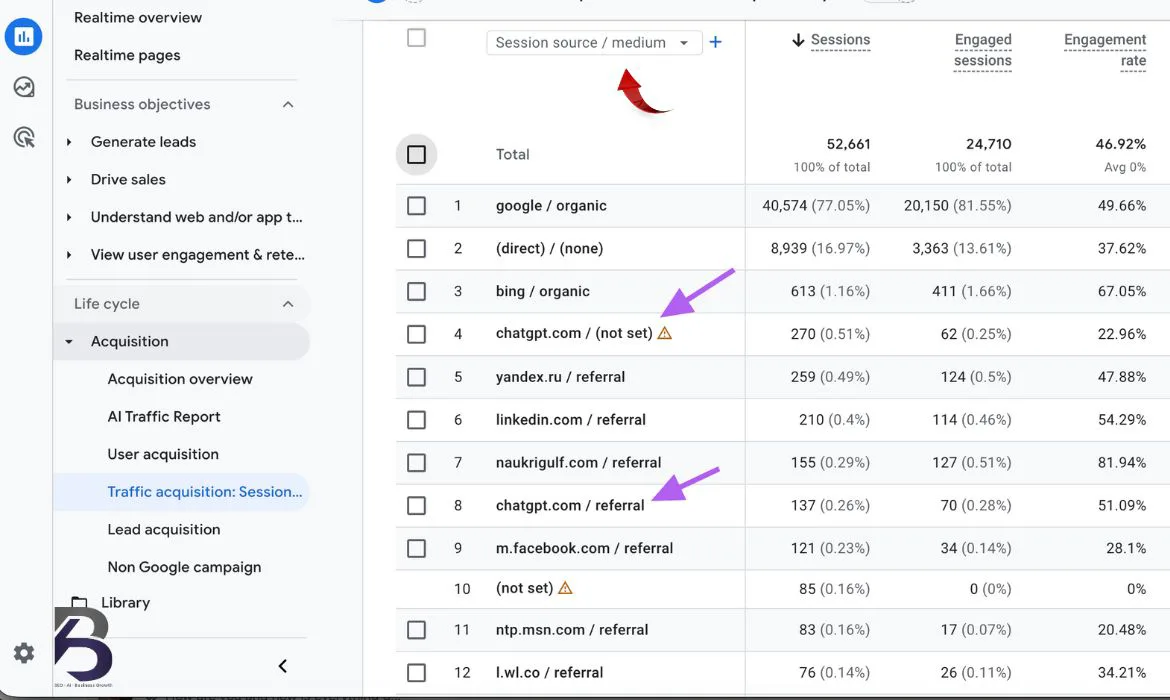
If you want to narrow down the search and only view the referral traffic, then you need to scroll up and click on Add Filter. In the first dropdown titled Dimension on your right-hand side of the screen, select Session Default Channel Group.
In the second dropdown titled Match Type, select Exactly Matches.
In the third dropdown titled Value, select Referral. Once selected, click Apply. It will provide you all referral traffic, including AI traffic.
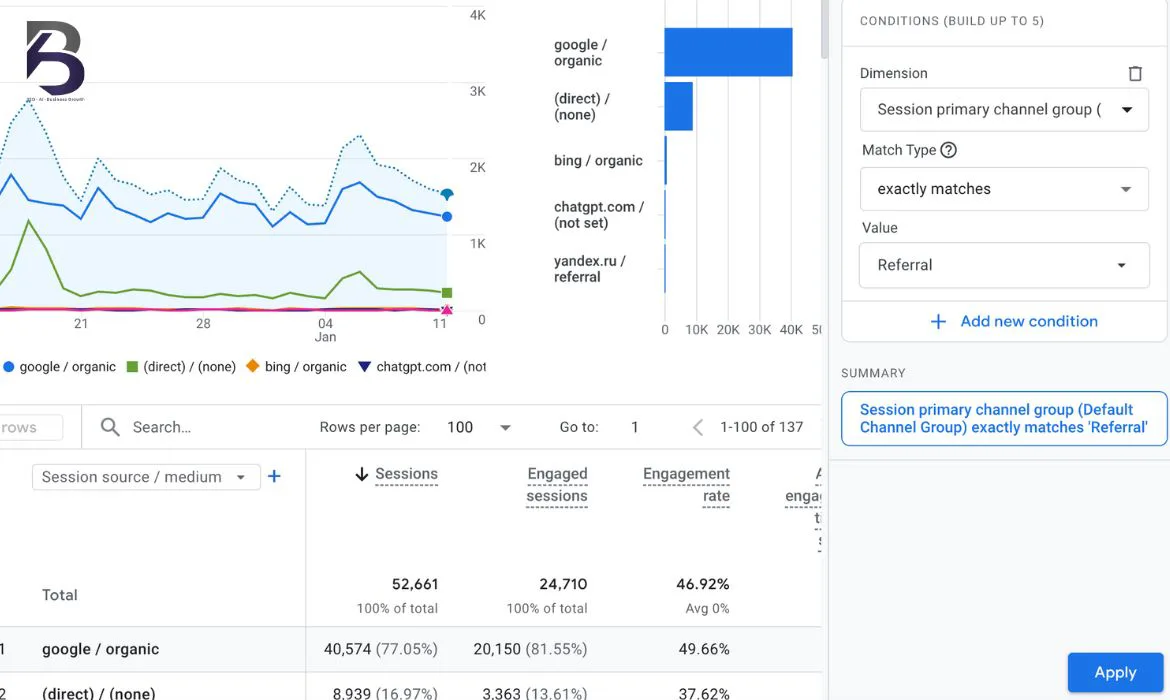
This process is fast and easy, but it is manual, and you have to repeat it every time you need to know AI traffic. This brings us to our next method.
Method 2 – Creating a Saved Report
Tracking AI traffic in Google Analytics 4 (GA4) through a saved report allows you to monitor AI-driven visits consistently without repeating manual checks. Here is a clear, step-by-step approach using GA4 Explorations.
- Open GA4.
- Go to Reports.
- Click on Library.
- Click on the three dots adjacent to the Traffic Acquisition option and select Make a Copy.
- Enter a Report Name. You may change the Report Description if you want.
- Click on Save.
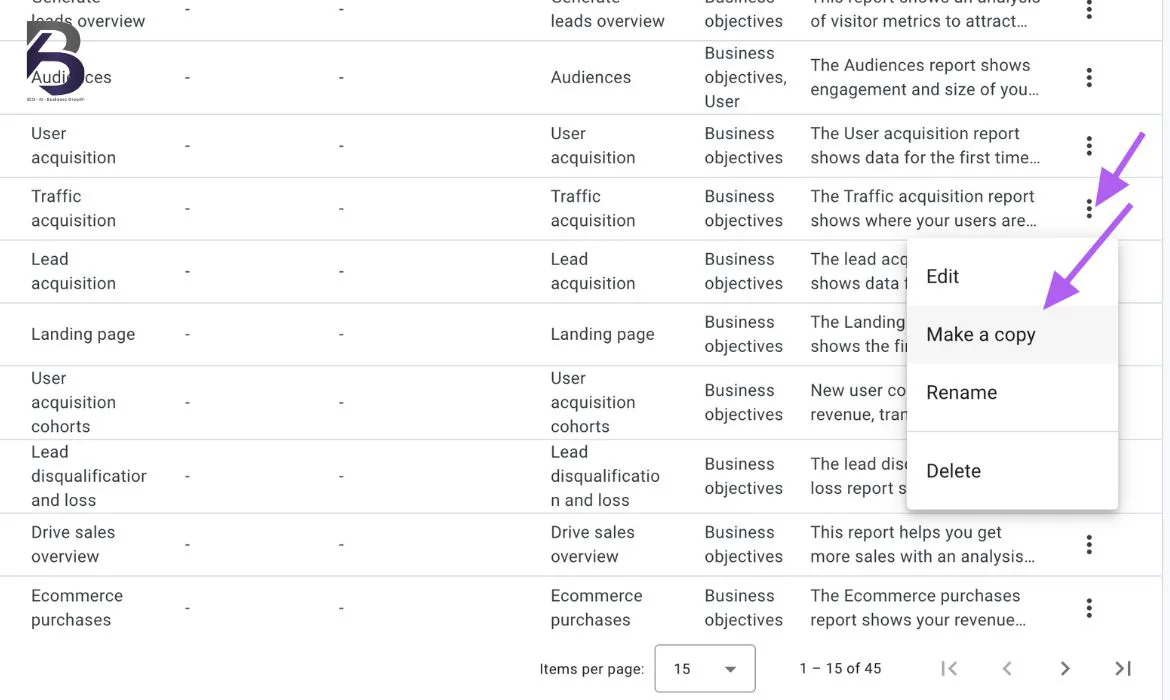
- You will now see your report. Click on the three dots adjacent to it and select Edit.
- On the right-hand side, you will find several options. In the first dropdown titled Dimension, make Session Source as the default one by clicking on it’s 3 dots.
- Next we need to Add Filter. In this, Dimension should me Session Source.
- Match type should be select Matches Regex.
- In the Value field, you need to put all the sources you want to track. Please remember that here you can’t just write the name of the sources. There is a specific way to write them that you can find in the text below.
.*chatgpt.com.*|.*perplexity.*|.*you.*|.*edgepilot.*|.*edgeservices.*|.*gemini.google.com.*|.*copilot.microsoft.com.*|.*openai.com.*|.*nimble.ai.*|.*iask.ai.*|.*anthropic.*|.*claude.ai.*|.*aitastic.app.*|.*bnngpt.com.*|.*runwayml.com.*|.*writesonic.com.*|.*qwen.ai.*|.*copy.ai.*|.*chatgpt.org.*|.*deepseek.*|.*grok.x.ai.*|.*blackbox.ai.*
- Once done, click on Apply.
- Now, you can see all the AI sources.
- Next, you need to save the report. Go to Save and select Save Changes to Current Report.
- Go back to the Library, where you will see your Life Cycle report collection. Click on the three dots adjacent to it and select Edit.
- In the second table, under Detail Reports, scroll down to find AI Traffic report.
- Drag the report and drop it under the Acquisition option in the first table. Click on Save and select Save Changes to Current Collection.
The newly generated custom report will now directly appear in the Reporting Tool. When you click on Back, you will head to the Reports section. Under the Acquisition option, you will see the new options, AI Traffic report. You will also be able to export your report. It stays in GA4 permanently, and you don’t have to configure it again. But if you go back to Traffic Acquisition, the list won’t show your new report. This is where our next method comes in.
Method 3 – Create a Custom AI Channel Group
Creating a Custom AI Channel Group in Google Analytics 4 (GA4) lets you classify AI-driven visits as their own channel, making them easy to monitor across various traffic sources. This approach provides ongoing visibility without relying on manual checks. For this, you need admin access. These are the steps you need to follow.
- Go to GA4.
- Select Admin.
- Select Data Display.
- Click on Channel Groups.
- You will see the Default Channel Group. Click on the three dots adjacent to it and select Copy to Create New.
- Give a suitable name and description for your group.
- Click on Add New Channel and give a channel name.
- Click on Add Condition Group, and the dimension should be Source. Now, you have to name all the sources, similar to how we mentioned earlier in the previous method.
- Click on Add a Condition and select Matches Regex from the dropdown option.
- In the second textbox, mention all the sources you want to view the traffic from in the same manner we earlier showed through an image in the second method. Click on Apply.
- Click on Save Channel.
- On the next screen, you will see a Reorder button that you need to click on.
- Scrolling down the list will show you the newly created channel at the bottom. Drag and drop it at the top. Click on Apply.
- Finally, you need to click on Save the Group. This will let you see the newly created channel group along with the Default Channel Group.
- Go back to the Acquisition Report. Click on the dropdown option and select the name of the channel group you just created. Once you select it, you will be able to see the AI traffic.
A custom AI channel group in GA4 transforms AI traffic from hidden noise into a visible, measurable channel, enabling better analytics accuracy, clearer insights into content usage, and smarter optimisation decisions as AI-driven discovery continues to grow.
Method 4 – Exploration
Tracking AI traffic in Google Analytics 4 (GA4) using the Exploration method lets you dig deeper into unusual traffic patterns and isolate AI-driven visits. This method is flexible, interactive, and ideal for spotting AI traffic trends that standard reports may miss. Here are the steps you need to follow under this method.
- Open GA4.
- Go to Reports.
- Click on Blank Report.
- Under the Variable Column, import the Dimensions. For this, click on the + sign beside the Dimensions option and select the category as per your requirement. To give an example, we are selecting Session Medium, Session Source, Landing Page, and Page Patch. Click on Confirm on the upper right-hand side of the screen.
- Next, you need to import the Metrics. Click on the + sign next to it and select the fields as per your requirements. To show an example, we are selecting Sessions, Engaged Sessions, Average Session Duration, Views, and Total Users. Select Confirm.
- Next is building the report. For this, drag the Session Source from the Variables column to the Rows box under the Settings column.
- Scroll down under the Settings Column until you find the Values option. You can either drag and drop the Metrics option from the Variables column here or click under the Values option and see all the added metrics. Click on all the metrics one by one. You will find the report being prepared simultaneously on the right-hand side of the screen.
- To filter it for only the AI traffic, scroll down the Settings column and select Filters.
- Select Sessions Source. In the Conditions box, select Matches Regex. In the Enter Expression box, you need to mention the name of the sources in a similar manner we showed in the second method earlier. Click on Apply. This will show you the traffic from solely the AI sources.
- Give a name to the report and save it.
You can export this report and visualise it through various tables, graphs, and charts for easier understanding. Additionally, you may customise the report as per your needs and requirements as well.
Please remember that the traffic you get from Google AI Overview and AI Mode is directly from Google, and it is very difficult to separate it from regular organic traffic. As of now, the best way to do so is to monitor your Google Search Console for specific queries, and that will give you an idea of this specific traffic.
Conclusion: Efficient AI Traffic Tracking
Whether you want to understand the impact of AI search engines, measure content visibility, or future-proof your analytics strategy, learning to track AI traffic in GA4 is now an essential skill.
These insights help SEO teams understand what type of content AI systems prefer, such as clear, well-structured, and authoritative pages. This allows them to optimise existing content and create new content that is more likely to be surfaced by AI tools.
Tracking AI traffic also helps explain changes in organic search performance, especially as AI reduces clicks from traditional search results. Overall, monitoring AI-driven traffic improves attribution, supports better reporting, and helps future-proof SEO strategies as search continues to evolve beyond traditional search engines.
We hope our guide has helped you get a better sense of various ways you can track the very crucial hidden AI traffic. Keep experimenting with all the methods and help your business grow by optimising AI.