
In the world of digital marketing, data is your compass. Without it, you are flying blind. To get that data, almost every website owner relies on two essential powerhouses: Google Analytics 4 (GA4) for understanding user behavior, and Google Search Console (GSC) for monitoring organic search health.
But here is the million-dollar question: How are you connecting these tools to your website?
If you are still asking a developer to paste individual code snippets into your website’s header every time you want to track something new, you are doing it the hard way. And if you have a WordPress website, and everytime you are installing a new plugin to connect a tool, there is nothing worse than that. It is time to change your approach.
In this guide, we will explore why Google Tag Manager (GTM) is the absolute best standard for connecting your site to Google’s ecosystem, and how to use it to streamline your Google Analytics and Search Console setup.
Why these Google Tools Matter for Every Website?
Google Analytics 4
Google Analytics 4 is the primary tool for understanding user behavior on your website. It measures engagement, conversions, user journeys, page performance, and traffic sources. Without GA4, you cannot evaluate which marketing activities work or which pages require improvement. GA4 combines events, sessions, and predictive analytics to give you a complete picture of your website performance.
Google Search Console
Google Search Console shows how Google views your website. It reports indexing status, search visibility, keyword performance, crawling issues, and overall search health. If GA4 explains what users do, GSC explains how Google treats your website. It is essential for SEO strategy and technical performance.
Google Tag Manager
Google Tag Manager functions as a central system for tracking codes. Instead of placing multiple scripts across different areas of your website, you install one GTM container. After that, all tracking is managed inside GTM. This prevents code duplication, reduces errors, improves site speed, and makes updates much easier. GTM also offers version control, testing environments, and better organization for marketers and SEO professionals.
Why Google Tag Manager is Non-Negotiable?
Before we dive into the “how,” we need to address the “why.” Many site owners confuse Google Analytics with Google Tag Manager.
Think of it this way:
- Google Analytics (GA4) is the Report. It analyzes the data.
- Google Tag Manager (GTM) is the Messenger. It sends the data.
The “Bucket” Analogy
Imagine your website code is a wall. The old way of doing things involved drilling a new hole in that wall every time you wanted to hang a picture (add a tracking pixel). Eventually, your wall is full of holes, messy, and structurally weak (slow site speed).
Google Tag Manager is like installing a single, sturdy shelf on that wall. Once the shelf is up, you can add, remove, or rearrange as many pictures as you want without ever drilling into the wall again.
Key Benefits of Using GTM
1. Speed and Agility: You don’t need to wait for a developer to push code updates. You can add tracking tags yourself in minutes (except the first time when you setup GTM).
2. Cleaner Website Code: Instead of cluttering your site with snippets from Facebook, Google, LinkedIn, and Hotjar, you have just one GTM code snippet.
3. Faster Page Loads: GTM loads tags asynchronously, meaning a slow-loading tracking script won’t prevent your actual content from showing up for your users.
4. Version Control: Made a mistake? GTM has a built-in “Undo” button (Versions) that lets you roll back changes instantly.
How to Connect Your Website to Google Tools Using GTM?
Create and Install the GTM Container
Go to, https://tagmanager.google.com/
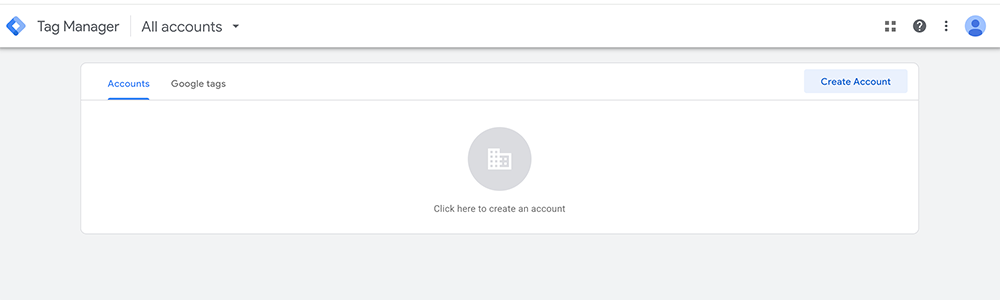
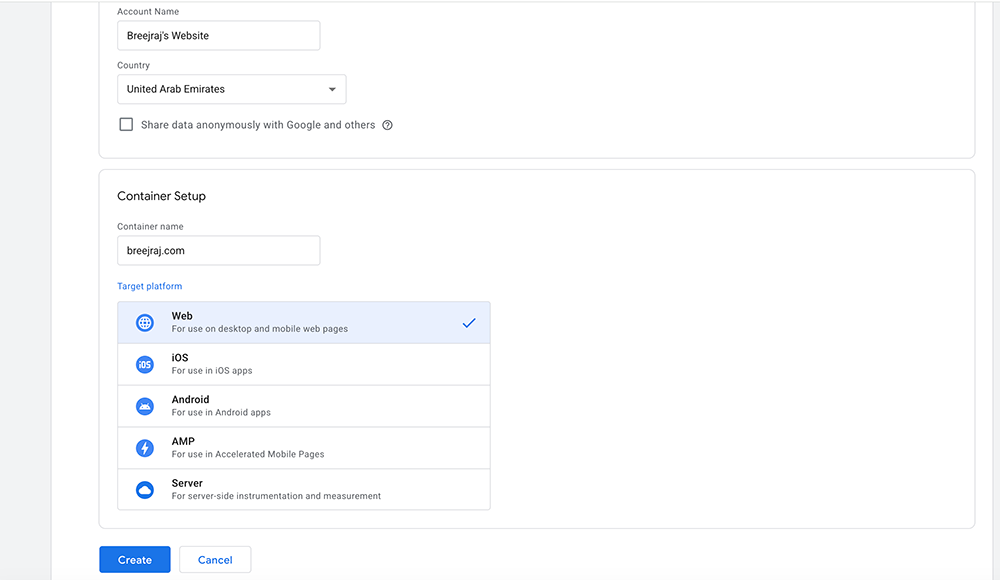
Click on Create Account and fill up the required details.
Once done, click Create.
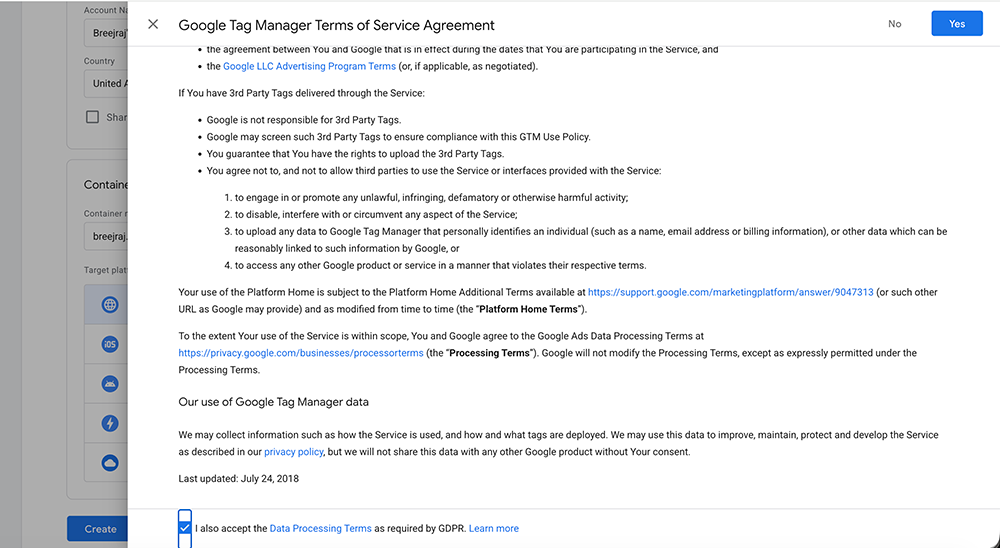
Accept the Terms and click Yes.
It will show you the GTM code and ask you to install it on your website.

Once the code is updated as per the instructions, you can Test the connection.

If it’s not installed properly, it will show you below message.

Once GTM is connected to your website, the next step is to create Google Analytics 4 (GA4) account.
How to set up GA4 account?
Go to https://analytics.google.com/
Click on the button, “Start measuring”
Enter Account name and click Next.
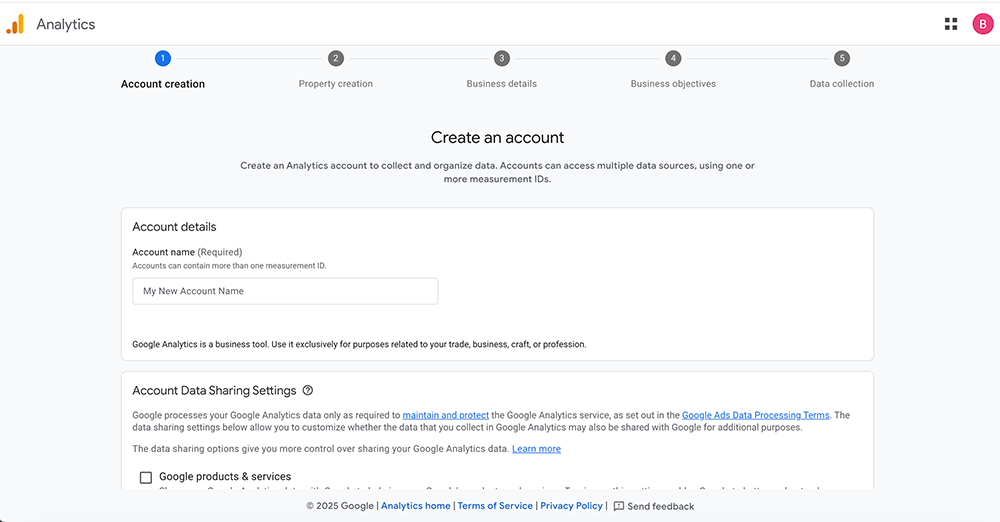
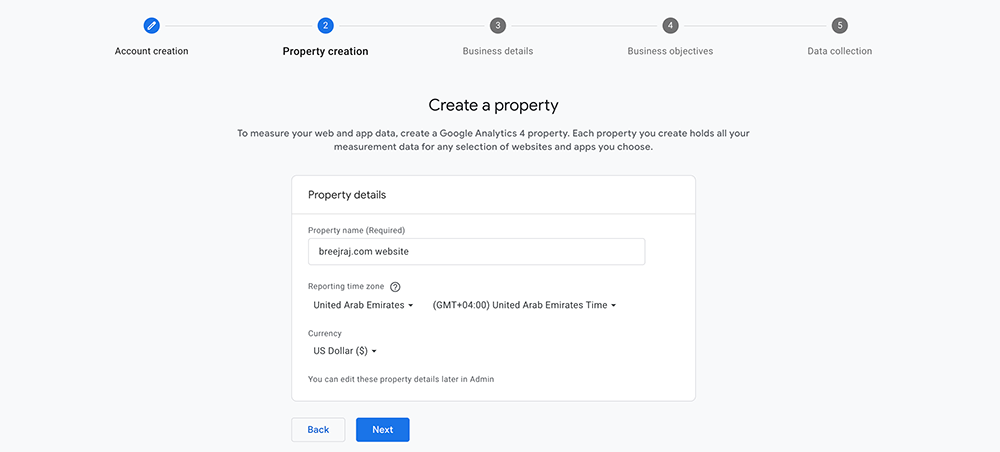
After this, we need to create a property. It’s like a bucket where all the data will be stored. If you have multiple websites under the same business or brand, you can add multiple properties, and all will be there under the same GA4 account.
Enter Property name, select reporting time zone, currency, and then click Next.
In the next step, select Business Category, and Business Size, and click Next.

Then it will ask you to Choose your business objectives. Select the appropriate ones and click on Create.
Choices made at this stage will define what kind of reports you will see in your GA4 property.
Accept Google Analytics Terms of Service Agreement, and it will be ready for collecting the data.
Now, we need to setup the data stream.
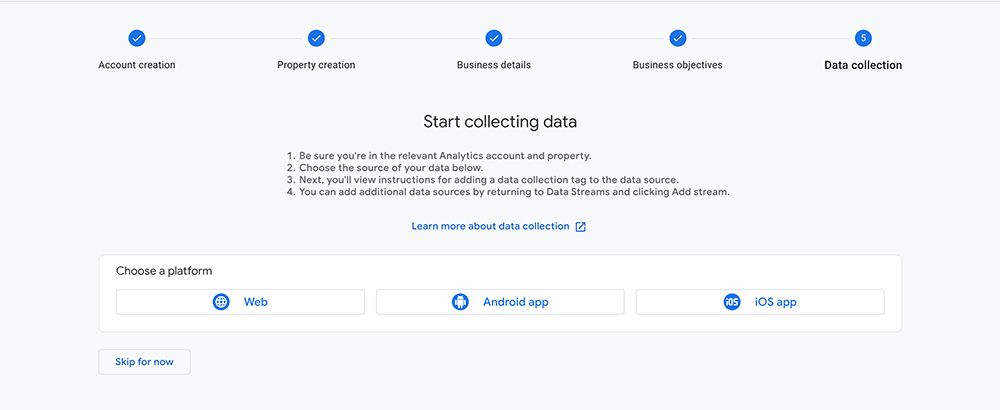
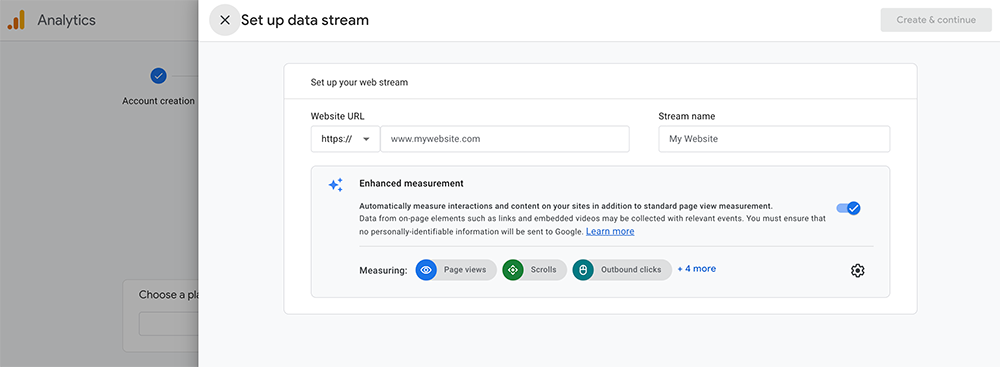
Next step is to setup your data stream. Enter the website URL and stream name, and then click on Create & Continue.
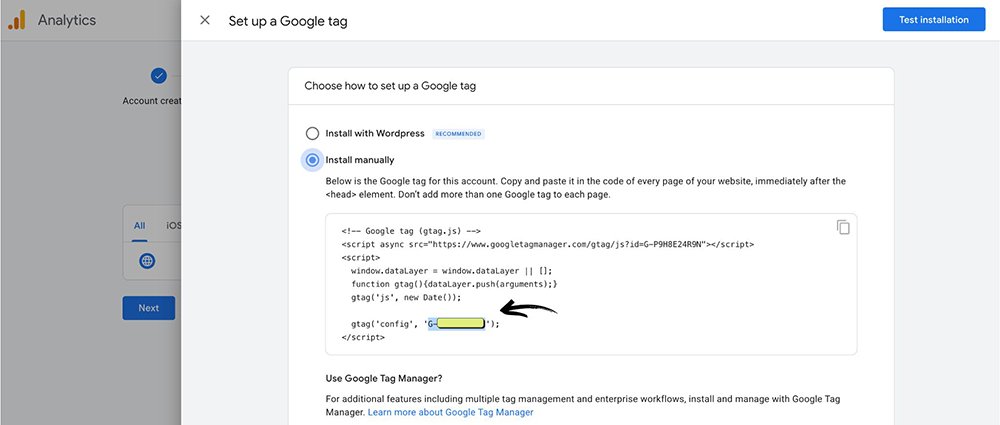
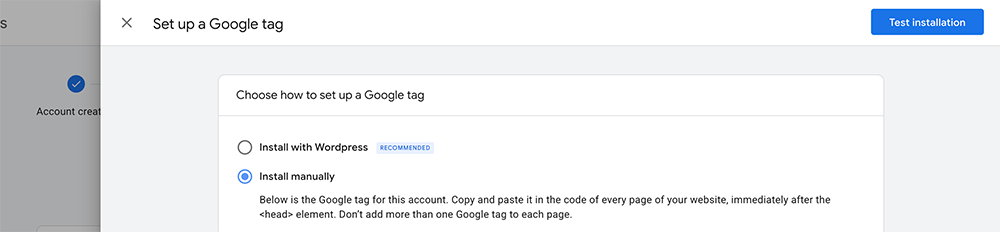
In the next step, it will ask you to set up the Google Tag.
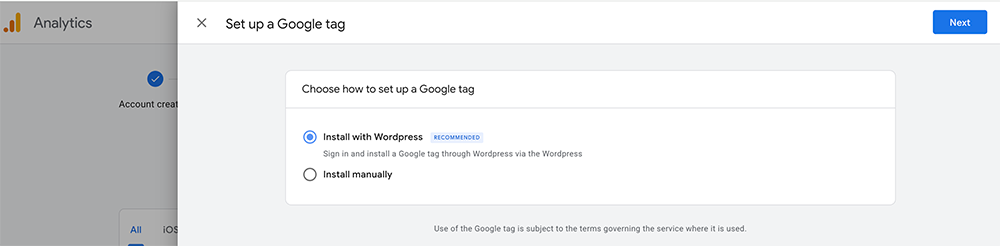
Don’t go for the WordPress option, click on manual, and copy the id that starts with G.
How to Connect Google Analytics 4 through GTM?
Go to Google Tag Manager (GTM), click on Tags, and then click on New.

Click on Tag Configuration, and then Google Analytics.
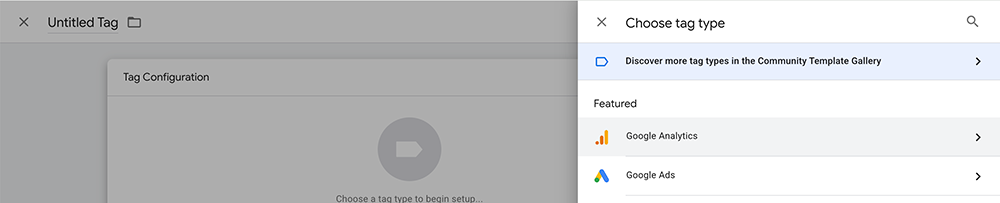
Then click on Google Tag, and in the Tag ID box, then GA4 tag id that starts with G, and click on Save.
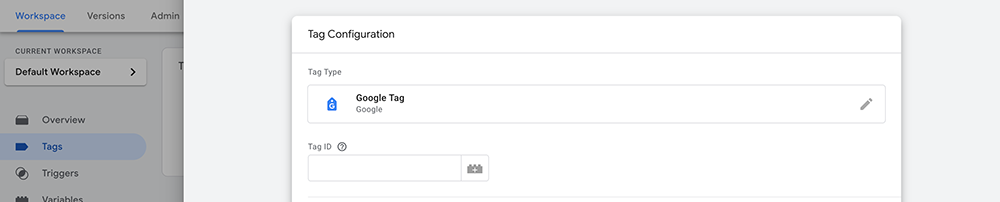
This connects your GA4 with GTM.
To check the connection, on GTM dashboard, click on Preview.

It will ask you to enter your website address.
Enter website URL and click on Connect.
On successful connection, it will open your website and you will get below pop-up message.

Now, the final step is to make all the changes live.
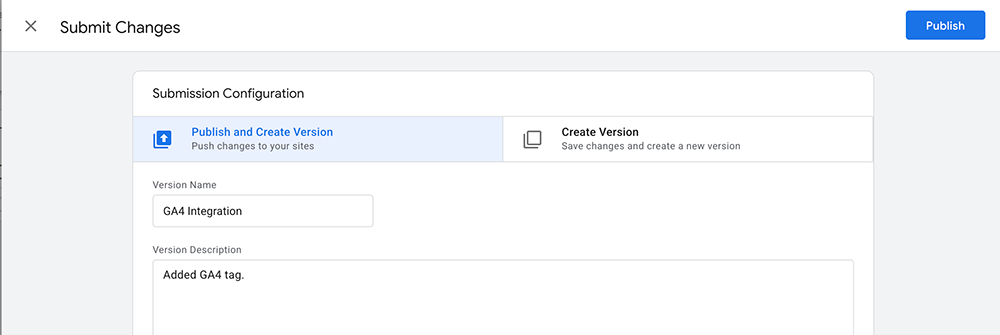
For that, go back to the GTM dashboard, and click on Submit.
Then give a Version name, enter Version description if you want to and then click on Publish.
Now, go back to GA4 screen and click on Test Installation.
You will get below message:

Click on Confirm, and this completes your GA4 integration with GTM.
How to connect Google Search Console (GSC) to the website?
To connect GSC, go to https://search.google.com/search-console/, it will show you the welcome screen.
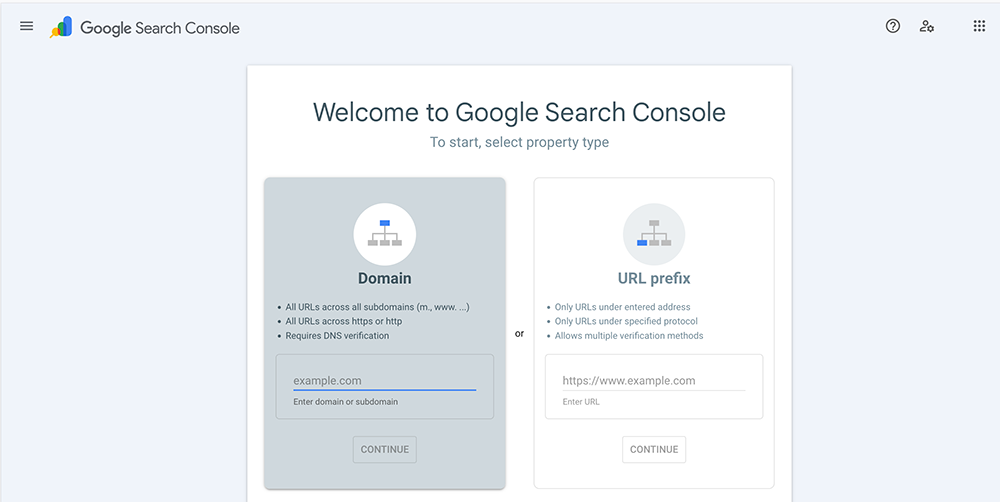
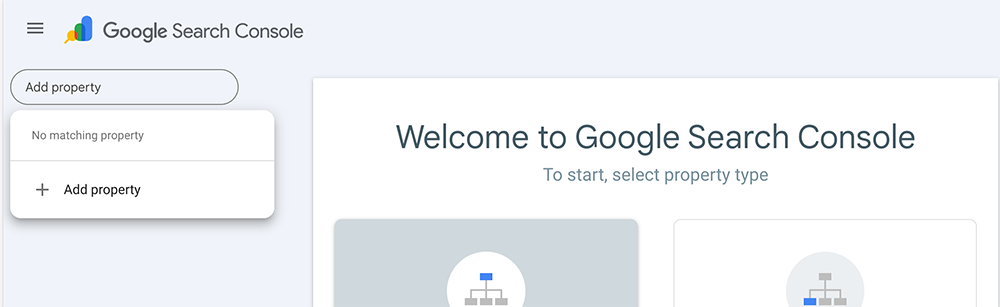
Click on the Main menu icon, then then Add Property.
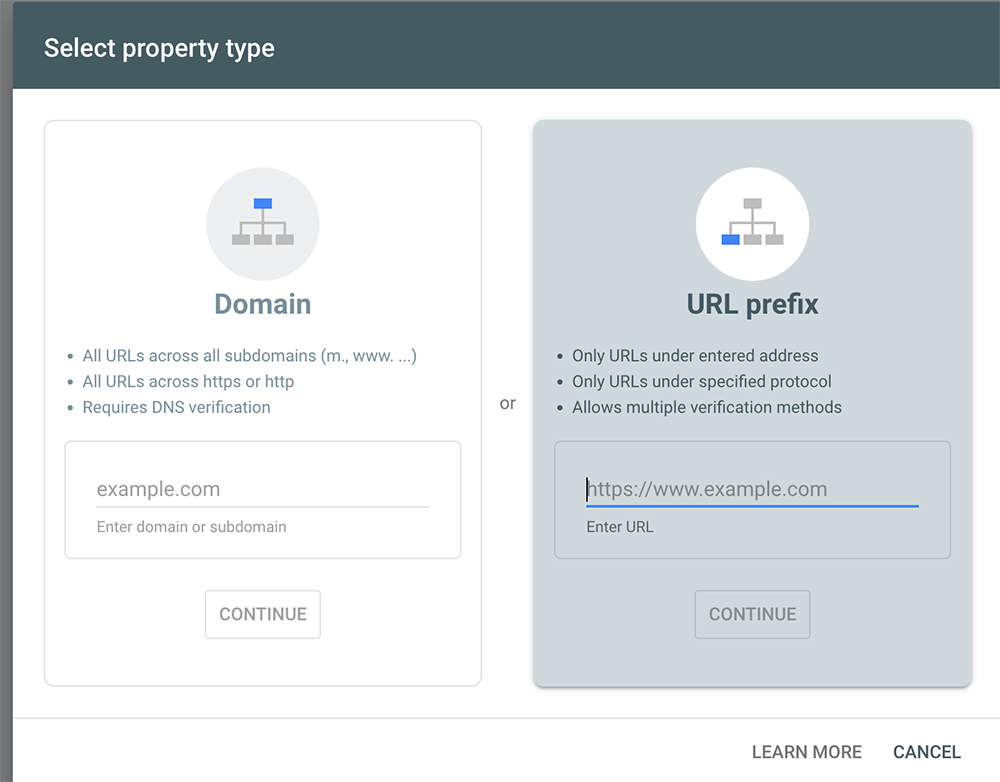
Enter the website URL under URL prefix window and click Continue.
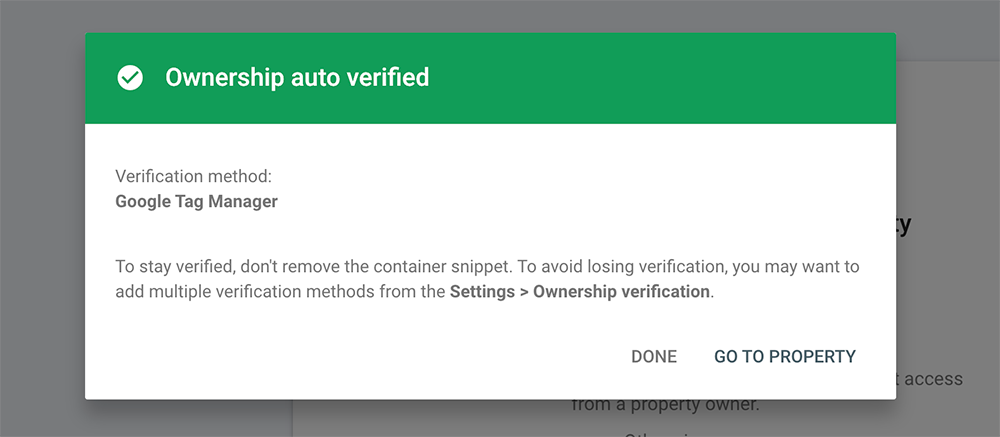
If your GA4 is connected to GTM, it will get auto verified and you will get below message.
How to connect Google Search Console (GSC) to Google Analytics 4 (GA4)?
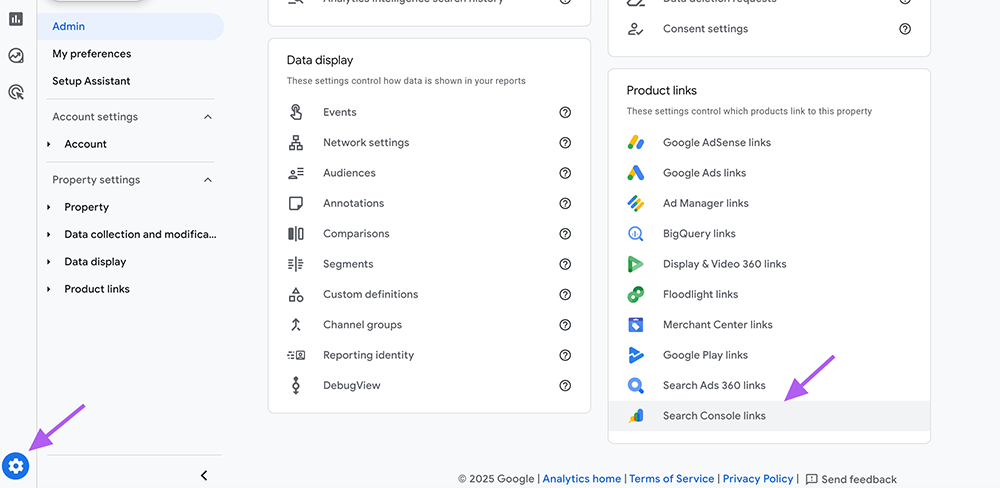
To connect GSC to your GA4 account, log in to Google Analytics account, go to Admin, and look for Search Console links and click on that.
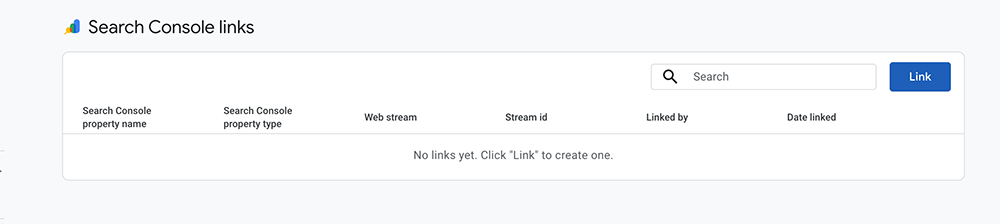
On the next screen, click on Link
On the next screen, choose the Search Console account that you want to connect, and click Confirm. Then click Next and select the Web Stream.
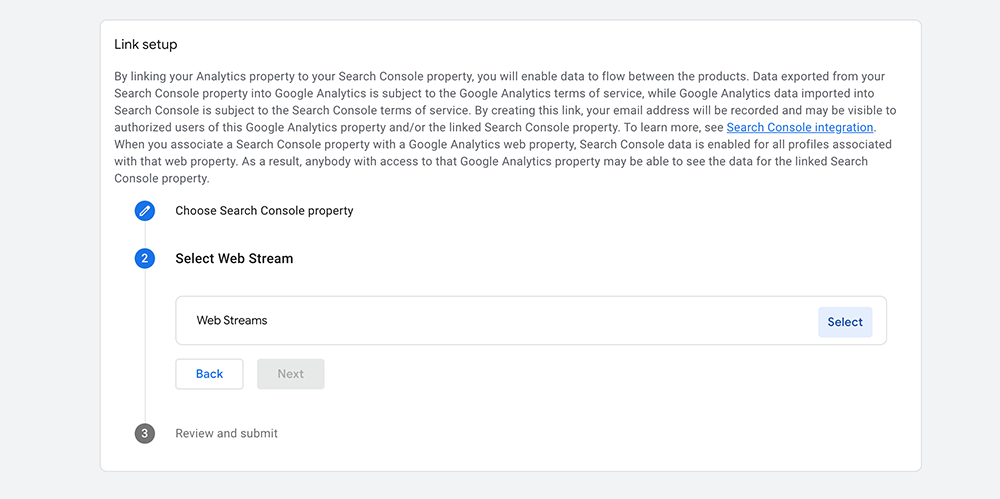
Again click Next, and then Submit.
If everything is done property. It will connect your GSC to GA4, and you will get a confirmation message, “Link Created”.
Now, you will be able to see your GSC data in GA4.
Why This Method is the Most Reliable and Future Proof?
Connecting everything through GTM makes your website tracking stable, clean, and easier to manage. When all scripts go through one system, you avoid errors, duplication, and inconsistent data. Marketers and SEO professionals can add new tracking events without touching the website code. Developers gain fewer dependencies. Your reporting becomes more accurate because everything is managed through a single control panel.
This setup is also ideal for businesses running performance marketing campaigns. GTM allows integration with Meta Pixel, Google Ads conversion tracking, LinkedIn Insight Tag, TikTok Pixel, Pinterest Tag, and other advanced services. Everything works in harmony without affecting the website’s core codebase.
Most importantly, GTM prepares your website for future changes. Whether you redesign the site, shift platforms, or engage new agencies, your tracking remains intact because the logic lives outside your website code.
Conclusion: You Are Now Data-Ready
By shifting to Google Tag Manager, you haven’t just “installed analytics”, you have built a scalable infrastructure for your website’s growth.
You now have a centralized command center (GTM) that deploys your tracking (GA4) and validates your site ownership (GSC). This setup ensures your data is accurate, your site remains fast, and you have the independence to manage your marketing tools without constant developer intervention.
The days of messy code are over. Welcome to the era of streamlined data management!
That’s a great idea for rounding out the article! FAQs help address common user questions and prevent confusion.
Here are a few relevant FAQs with answers to add to the end of your blog post:
Frequently Asked Questions (FAQs)
Do I still need the Google Analytics code snippet on my site if I use GTM?
No, absolutely not! This is a critical point. Once you install the Google Tag Manager container snippet on your website, you must remove any old, hard-coded Google Analytics code (the gtag.js or analytics.js scripts) from your site’s header. Leaving both the old script and the GA4 tag in GTM will cause your data to be inflated (double-counted). GTM is now responsible for firing the GA4 tag.
Is Google Tag Manager free to use?
Yes, Google Tag Manager is completely free for standard use. There is an enterprise version called Tag Manager 360, but the features of the free version are more than sufficient for the vast majority of businesses and website owners.
Why can’t I link Google Search Console (GSC) directly through a Tag in GTM?
Google Search Console is not a tracking tag; it’s a verification tool used to confirm site ownership. GTM’s job is to deploy tracking codes (like GA4 and Google Ads), not to handle domain ownership verification. The proper link is done on the backend:
1. GTM manages the GA4 tracking code.
2. GSC verifies your site’s ownership.
3. You then connect the GSC property to the GA4 property to see the search data inside your analytics reports.
If I switch to GTM, will I lose my historical Google Analytics data?
No, you will not lose your historical data. Your data is stored in your Google Analytics Property. When you switch to GTM, you are simply changing the method of collecting new data. As long as you connect the same GA4 Measurement ID in GTM that you were using before, the new data collection will seamlessly continue in your existing property.
What is the main difference between a Tag and a Trigger in GTM?
They work together:
- Tag: The piece of code you want to fire (e.g., the GA4 configuration code, a Facebook Pixel, a Google Ads conversion script).
- Trigger: The condition that tells GTM when to fire the tag (e.g., “All Pages,” “A specific button click,” or “A form submission”).
The tag is what is tracked, and the trigger is when it is tracked.